
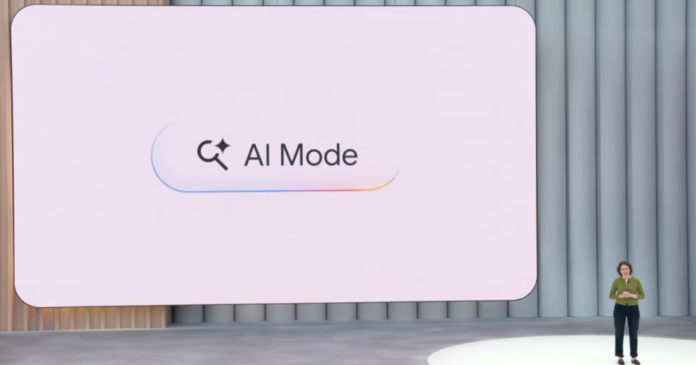
Google’s artificial intelligence tools are becoming impossible to escape. The company has been quietly rolling out AI-powered features across its entire ecosystem, from enhanced search results to automatic photo editing and predictive text suggestions. What started as optional experiments are now becoming default behaviors across Android devices and Google apps.
This expansion reflects Google’s broader strategy to integrate AI into every aspect of digital life, positioning itself as the dominant force in consumer AI applications. But for users who prefer traditional functionality or have privacy concerns, the constant presence of AI assistance can feel intrusive and overwhelming.
The most visible change has been in Google Search, where AI-generated summaries now appear at the top of many search results. These “AI Overviews” attempt to answer questions directly, often pulling information from multiple sources. While Google has improved its linking to original sources, many users still prefer traditional search results that let them evaluate sources themselves.
Beyond search, Google’s AI integration extends to Gmail’s Smart Compose feature, which suggests email completions as you type. Google Photos uses AI to automatically enhance images, create albums, and suggest edits. Google Assistant has become more conversational and context-aware. Even Google Maps now uses AI to predict traffic patterns and suggest optimal routes based on real-time data analysis.
The privacy implications are significant. These AI features require Google to analyze more of your personal data, from search queries to email content to photo libraries. Each interaction helps train Google’s models while potentially exposing more information about your habits and preferences.
Fortunately, Google still allows users to disable most AI features individually. Here’s how to regain control:
- Turn off AI search summaries: Go to Google Search settings and disable “AI-powered results” or switch to traditional search view
- Disable Gmail Smart Compose: In Gmail settings, find “Writing suggestions” and turn off predictive text features
- Stop Google Photos AI editing: Open Photos settings and disable “Auto-enhance” and “Suggested actions”
- Limit Assistant AI features: Access Google Assistant settings and turn off “Personal results” and conversation history
- Control Maps AI suggestions: In Google Maps, disable “Driving suggestions” and location-based recommendations
These changes won’t completely eliminate AI from Google’s services, but they will reduce how much personal data gets processed by machine learning algorithms. Users should review these settings regularly, as Google frequently updates its apps and may re-enable features after updates.
The broader trend toward AI integration isn’t limited to Google. Apple, Microsoft, and other tech giants are following similar strategies, making AI opt-out rather than opt-in. This shift represents a fundamental change in how we interact with technology, where algorithmic assistance becomes the default rather than a choice.